
Staff scheduling for hair salons: set the rota once
The rota is the week each stylist works, day by day. In Stamly it decides which times customers can book, and it is the yardstick the timesheet uses to show what was actually worked.
Staff rota at a glance
- Each staff member has a fixed week of working hours, set up under Staff in the portal.
- A stylist can work at different locations on different days, all in one rota.
- Customers only see free times when the stylist has a shift and the location is open.
- The timesheet puts the rota next to clocked time and shows the difference in colour.
Maria splits her week between two locations
On Thursdays and Fridays Maria is moving from Holtegata to Majorstuen. Here is how that travels from the rota to the timesheet.
Staff rota
Anne, ownerStaff → Working hours
Turns on “Different locations on different days”. Maria: Holtegata Mon–Wed, Majorstuen Thu–Fri.
Anne, ownerSave rota
Working hours for Majorstuen now show Maria on Thursday and Friday, 10–18.
Online bookingSame evening
A customer sees free times with Maria at Majorstuen on Thursday, and none with her at Holtegata.
Maria, stylistThu 09:56
Clocks in at Majorstuen. “Clocked in at 09:56”.
TimesheetThursday
Worked 8 h 20 min, rota 7 h 30 min. The difference shows in yellow.

Setting up the rota in Stamly
Open a staff member under Staff and go to the Working hours tab. “Edit working hours” gives you her week from Monday to Sunday, with start and finish times for each day she works. Days without a shift show as Free.
If she works the salon’s opening hours, tap “Use the opening hours” and then fix whatever is different. Maybe one stylist starts at 11 on Tuesdays because she does the nursery run. That takes ten seconds to enter.
A new staff member gets the location’s opening hours as her rota the moment she is added. So customers can book her from day one, even if nobody has got round to looking at her week yet.
One stylist, two addresses
Salons with two locations nearly always have someone who works at both. Turn on “Different locations on different days” and each working day gets its own location menu. Maria can be at Holtegata Monday to Wednesday and at Majorstuen on Thursday and Friday, in the same rota.
Customers at Holtegata then see no times with her on Thursday, while customers at Majorstuen do. Nobody needs two profiles or two calendars for one person.
A manager only sees and edits the shifts at their own locations. Shifts at other locations are left alone when they save.
Who’s working on Thursday?
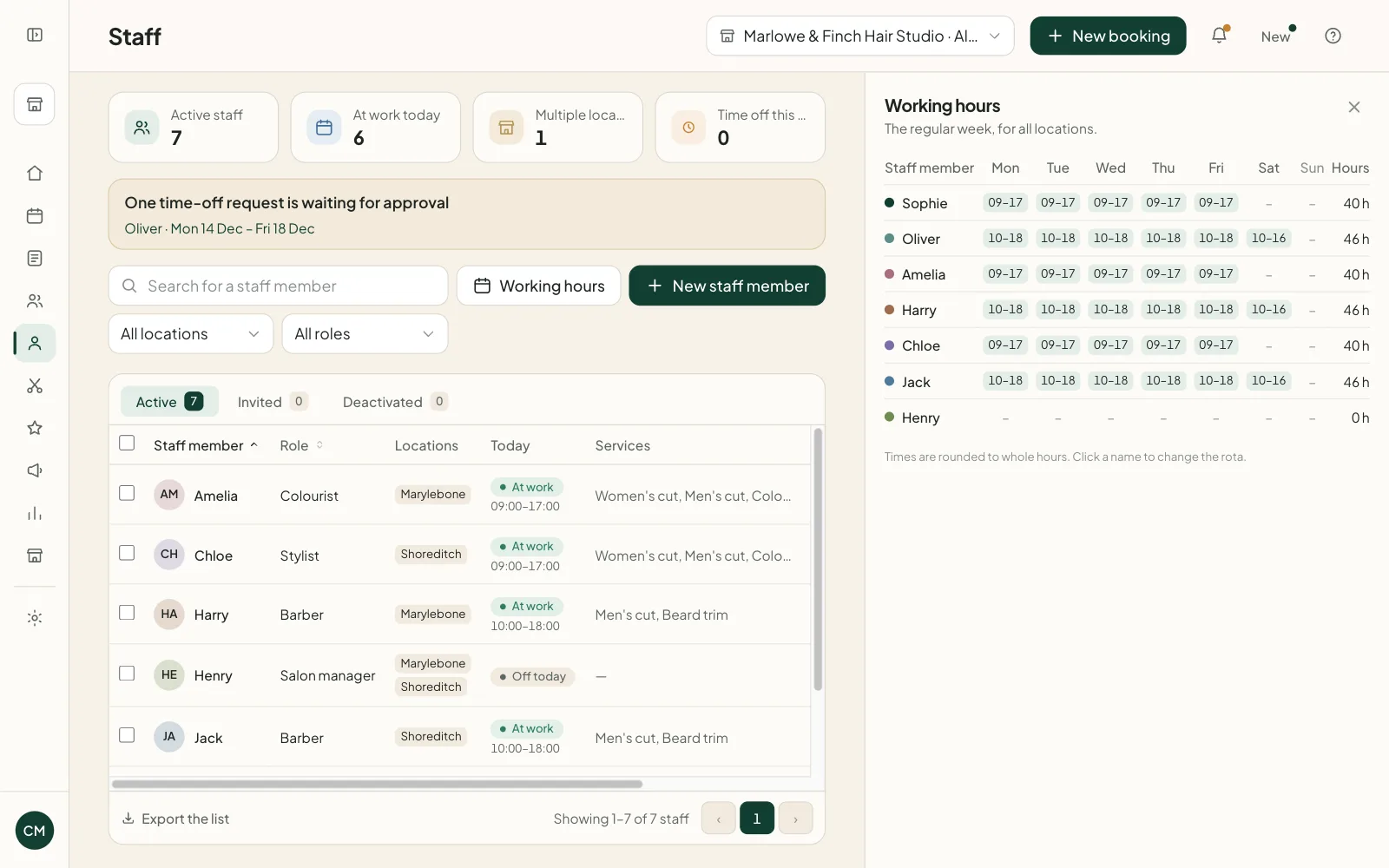
With eight stylists you don’t want to open eight profiles to find out. Working hours on the Staff page shows the regular week for the whole location in one table, with weekly hours for each person. The owner can see every location together.
Times in the table are rounded to the hour so it reads quickly. To change something, click the name.
Staff see their own week in Stamly Business, with working time and free time for each day. They can’t change the rota themselves.
What the rota controls
Opening hours belong to the location; the rota belongs to each stylist. A customer can only book when both line up, and breaks, time off and appointments already taken are subtracted.
Drag an appointment in the calendar to a time when the stylist isn’t working and the portal stops you, because she has no shift then. A single day off is recorded as time off, not as a new rota.
- Free times in the customer app and on the salon’s page at stamly.net.
- The Free figure on Today in Stamly Business: the shift minus breaks, time off and appointments.
- Utilisation per staff member in the portal, worked out as booked minutes divided by shift minutes.
- Rota and difference in the timesheet, and the suggested times when hours are logged by hand.
The rota against the hours actually worked
When staff clock in, the timesheet places the rota next to the time worked for each day. Over the rota turns yellow, more than an hour over turns red. A day with approved full-day time off counts as zero on the rota, so a week of holiday doesn’t leave her 37 hours short.
The rota also fills in the form when someone forgot to clock in. “From the rota: 10:00–18:00” is already there, and she only corrects what was different.
Staff rota: common questions
Can a stylist have shifts at more than one location in Stamly?
Yes. With “Different locations on different days” each working day gets its own location, so the same stylist can work at one address on Monday and another on Thursday in a single rota.
Who can change the rota?
Owners and managers, in the portal. A manager can only change shifts at their own locations. Staff see their working hours in Stamly Business but can’t edit them.
Can the rota change from week to week?
Not at the moment. The rota is one fixed week per staff member that repeats. A single day off is recorded as time off, and a stylist can block short gaps in the calendar herself.
Can customers book outside the rota?
No. Customers only see free times when the stylist has a shift and the location is open. Breaks, approved time off and existing bookings are taken out.
What is the difference between the rota and opening hours?
Opening hours apply to the location, and the rota applies to each staff member. A customer can only book when the location is open and the stylist is working at the same time.
How do the rota and time tracking fit together?
The timesheet shows clocked time next to the rota for each day and marks the difference in colour. When hours are logged by hand, Stamly suggests that day’s shift from the rota.
More features for your salon
See how booking, customers, staff and loyalty fit together in Stamly.
See all of Stamly for your salon
Appointment book, customers, staff, loyalty and the overview, in one platform.